
WooCommerce Product Generator: How to Auto-Create Product Titles, Descriptions, Categories, Tags, Images & Reviews
The WooCommerce Product Generator is a powerful Pro feature of the AIWU AI Copilot plugin that lets you update or generate product fields in bulk directly inside WordPress. Using your own AI API key (OpenAI, Gemini, DeepSeek), you can auto-create SEO-friendly titles, full and short descriptions, categories, tags, featured images, and even realistic customer reviews for dozens or hundreds of products at once.
Accessing the Feature
You can open the WooCommerce Product Generator in two ways:
From the WooCommerce Products Page
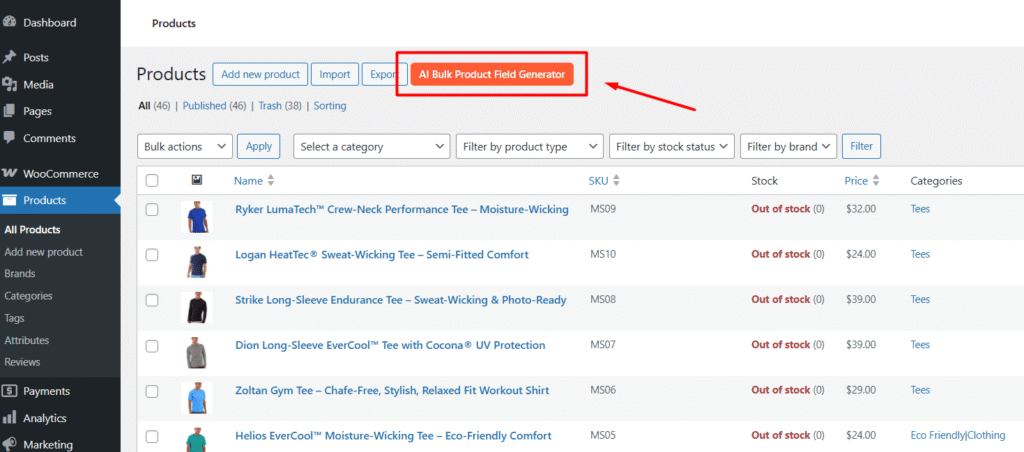
- Go to Products → All Products in your WordPress admin.
- Look for the “AI Bulk Product Field Generator” button at the top of the list (next to “Add New”).
- Click it to launch the generator.
From the AIWU Workspace
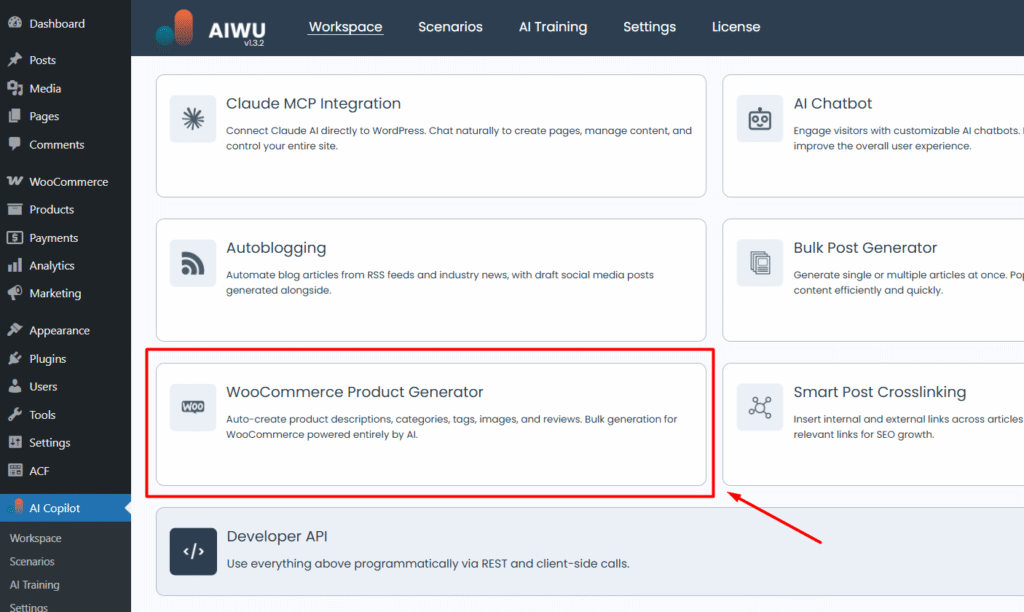
- Navigate to AIWU → Workspace.
- Find the “WooCommerce Product Generator” tile.
✅ Once opened, the tool is ready to work with multiple products.
Setting Up Your Product Update
Step 1: Select Products to Update
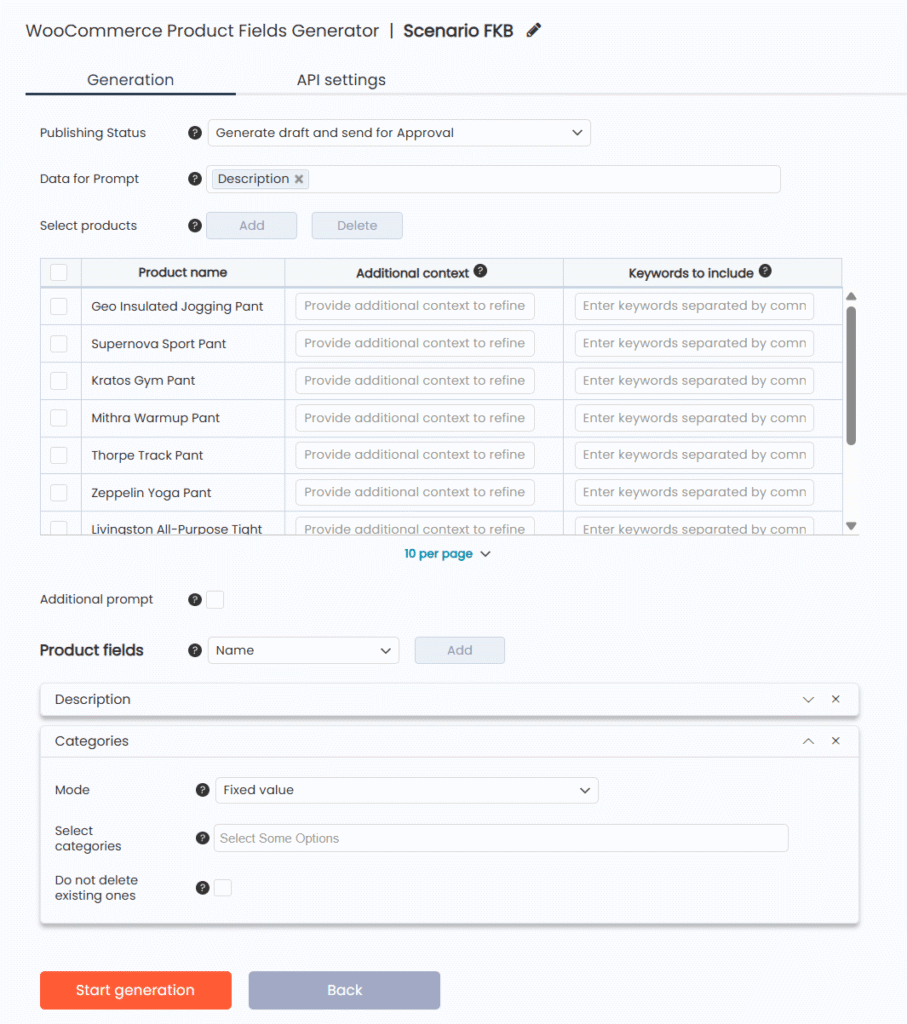
After opening the generator, click “Add” to choose which products to process.
In the product selection window, you can:
- Search by product name
- Filter by category or tag
- Manually check boxes to select specific items
Click “Add” to confirm your selection. A table will appear showing all chosen products.
💡 Best Practice: Start with 5–10 products to test your settings before running large batches.
Step 2: Add Context and Keywords (Optional)
For each product, you can provide extra guidance to improve AI output:
- Additional context: Brief notes like “Premium model with noise cancellation”
- Keywords to include: Comma-separated terms like “wireless, bluetooth 5.3, 30h battery”
This data is used in AI prompts to ensure relevance, brand alignment, and SEO optimization.
Step 3: What is “Data for Prompt”?
The “Data for Prompt” dropdown lets you tell AIWU which existing product data should be used to generate new content. For example, if you select “Product name, Categories, and Attributes”, the AI will use those fields as context when writing titles, descriptions, or reviews ensuring the output stays aligned with your product’s actual details.
✅ Tip: Empty fields won’t be included in the prompt, so you don’t need to worry about irrelevant or missing data affecting results. This feature helps AI create more accurate, personalized, and context-aware content without manual input.
Step 4: What is “Additional Prompt”? (Optional)
The “Additional prompt” field lets you provide global instructions that will influence the AI’s output across all selected product fields (titles, descriptions, reviews, etc.). For example, you can write:
“Write in a professional tone. Highlight durability and customer service. Avoid using exclamation marks.”
This prompt acts as a “style guide” for the entire batch ensuring consistency across your catalog. If you need more granular control, you can also add field-specific prompts later (e.g., under “Name” or “Description”) to override or refine the global instruction.
💡 Pro Tip: Use this field to enforce brand voice, include legal disclaimers, or specify formatting (like bullet points or paragraph breaks).
Customizing Product Fields
Let’s choose which fields to generate.
🔹 All settings apply to every selected product.
🔹 You can add as many fields as needed using the “+ Add Field” dropdown.
1. Name (Product Title)
- Max characters: Set limit (e.g., 60 for SEO)
- Additional prompt: “Include brand and key feature”
2. Description (Full Product Description)
- Max characters: Recommended 500–1000
- Additional prompt: “Focus on benefits, use bullet points”
- For variable products, AI can generate unique descriptions per variation if enabled.
3. Short Description
- Max characters: 150–300 (ideal for shop listings)
- Appears on category pages and in search results
4. Categories & Tags
- Choose to keep existing or generate new terms
- Use append mode to add AI-suggested categories/tags without removing current ones
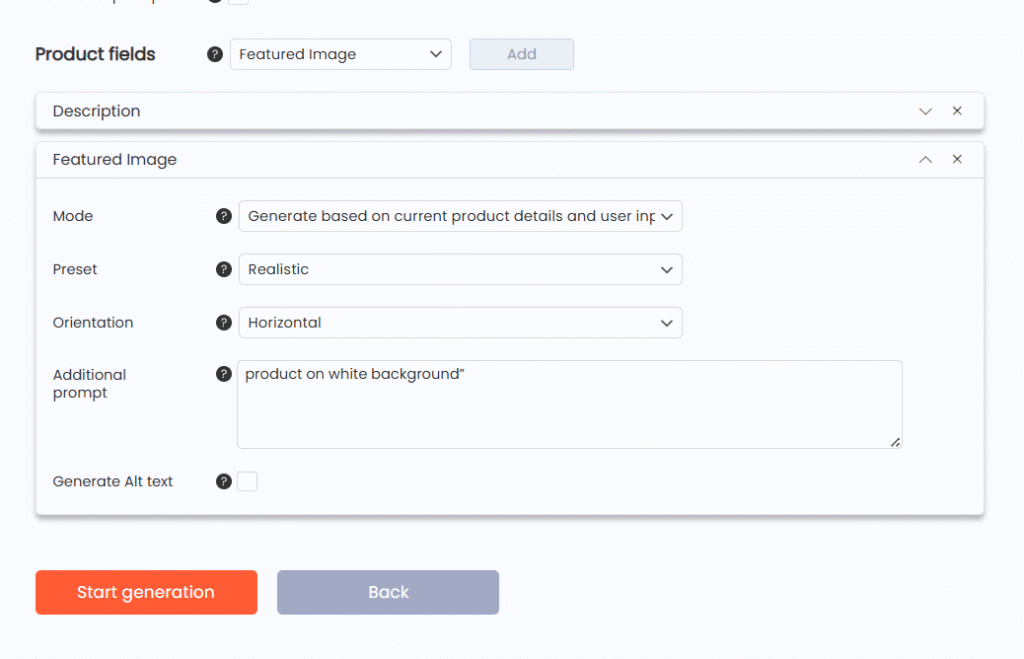
5. Featured Image
- Generate AI image: Yes / No
- Image preset: Select from 30+ styles (e.g., “product on white background”)
- Orientation: Square, horizontal, or vertical
- Alt text: Automatically generated for SEO
6. Custom Taxonomies & Attributes
- Add any custom product taxonomy (e.g., “Brand”, “Material”)
- Provide a short description so AI understands what the field means
- Choose between fixed value or AI-generated content
7. Product Reviews
Enable realistic AI-generated reviews with full control:
- Number of reviews: Fixed (e.g., 5) or random range (e.g., 1–10)
- Star rating: Fixed or randomized (e.g., 3–5 stars)
- Review dates: Spread over a date range (e.g., last 60 days)
- Review authors: Assign from existing WordPress users
- Additional prompt: “Mention packaging and delivery speed”
Configure Publishing & API Settings
Publishing Status
Before generation, choose how products should be saved:
- Draft (recommended for review)
- Published (goes live immediately)
API Settings
In the “API Settings” tab, configure:
- AI Provider: OpenAI, Gemini, DeepSeek
- Model: GPT-4o, Gemini Pro, etc.
- Language: 200+ options
- Tone: Professional, casual, marketing, etc.
- Advanced: Temperature, max tokens, frequency penalty
🔒 Privacy Note: All processing uses your API key. AIWU does not store or access your content.
Start Generation & Review Results
- Click “Start Generation”.
- Watch real-time progress in the results table.
- Estimated time: ~30–60 seconds per product.
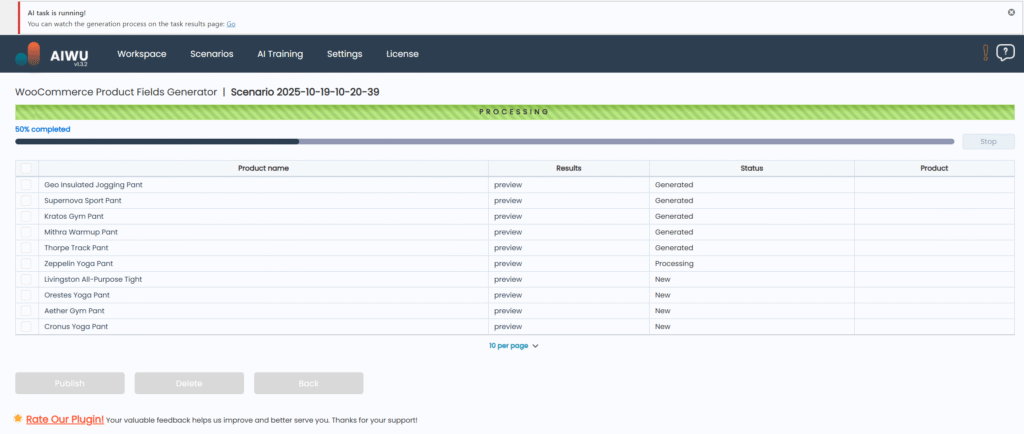
After completion:
- Click “Preview” to inspect AI output for any product
- Edit any field manually if needed (when not published instantly)
- Use checkboxes to select which products to update
- Click “Publish Selected” or “Publish All”

Manage Operations in Scenarios
All bulk tasks are saved in the Scenarios tab (AIWU → Scenarios). You can:
- Resume interrupted jobs
- Regenerate specific fields
- Reuse successful configurations
- Delete old entries
Each record shows: operation ID, number of products, status, date, and author.
Best Practices & Troubleshooting
✅ Best Practices
- Always test on a small batch first
- Backup your site before large updates
- Provide clear context and keywords for better output
- Review AI content before publishing especially for technical products
❌ Common Issues
- “WooCommerce not active”: Install and activate WooCommerce plugin.
- Slow or failed generation: Reduce batch size (50–100 products max per run).
- Generic descriptions: Improve prompts and add more product-specific context.
- Reviews not visible: Ensure selected WordPress users exist and have proper roles.
The WooCommerce Product Generator helps you scale your store efficiently, improve SEO, and maintain consistent, high-quality product content without hiring copywriters or spending hours on manual edits.