
Discord: How to Send Messages and Embeds
Introduction
Discord Integration in AIWU allows you to send automated messages and rich embeds directly to your Discord channels from WordPress. Whether you need to notify your team about new orders, share content updates, or create automated alerts — this integration makes it seamless.
With Discord Integration, you can:
- Send text messages to any Discord channel via webhooks
- Create rich embed messages with custom formatting, images, and colors
- Automate notifications based on WordPress events using Workflow Builder
- Customize bot username and avatar for each message
This guide will walk you through setting up the Discord integration and using both available functions: Send Message and Send Embed.
Part 1: Setting Up Discord Integration
Before using Discord actions in Workflow Builder, you need to connect your Discord account to AIWU.
Step 1: Create a Discord Account
If you don’t have a Discord account yet, create one at discord.com.
Step 2: Create a Discord Server and Channel
- Open Discord and create a new server (or use an existing one)
- Create a text channel where you want to receive messages from AIWU
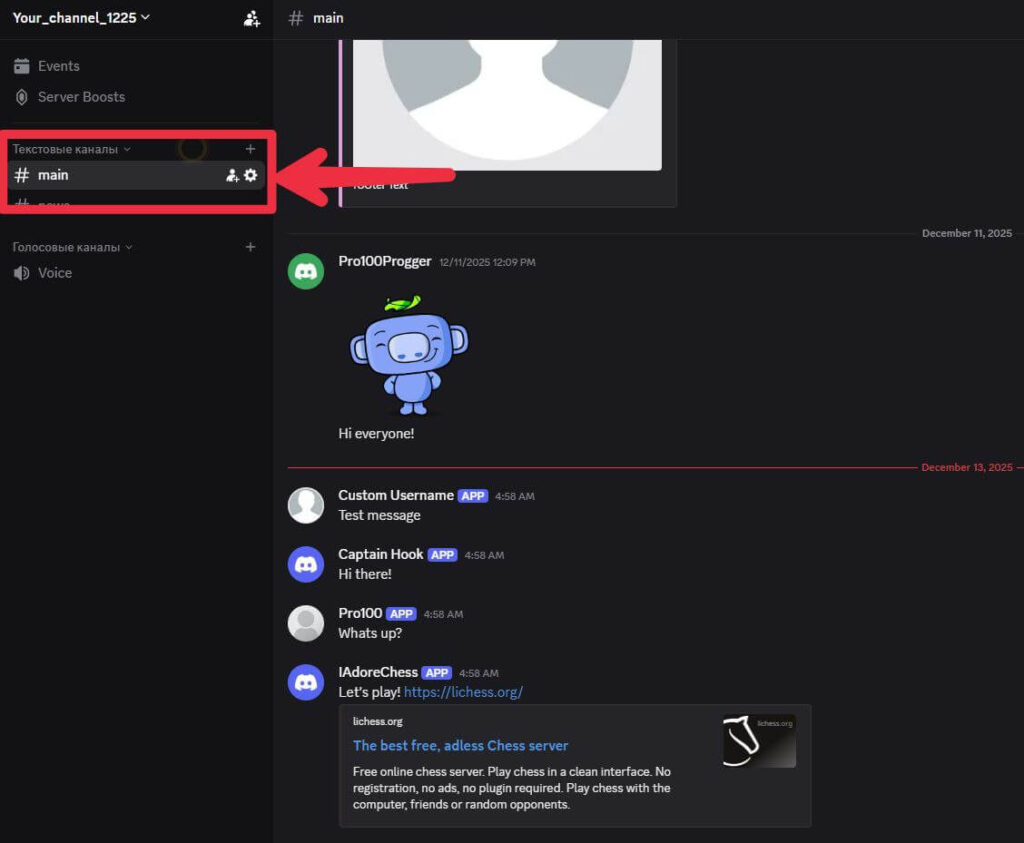
Discord server and settings button of your current text chat
Step 3: Create a Webhook Integration
- Go to your Discord channel
- Click on the gear icon (Edit Channel) next to the channel name
- Navigate to Integrations → Webhooks
- Click New Webhook
- Give your webhook a name (e.g., “AIWU Bot”)
- Copy the Webhook URL — you’ll need this for AIWU
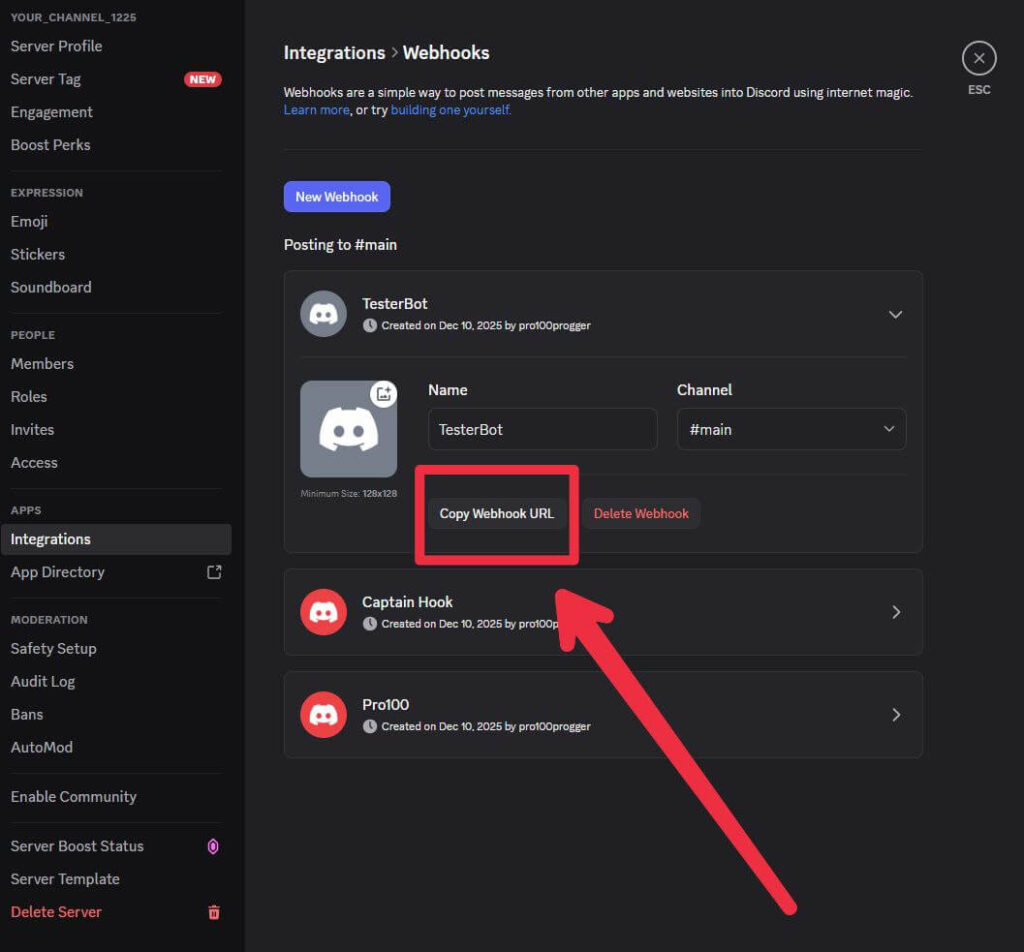
Discord webhook creation screen showing New Webhook button and Copy URL option
Step 4: Add Discord Account in AIWU
- Go to your WordPress dashboard
- Navigate to AIWU → Integrations
- Find the Discord section and click Add Account
- Enter a name for this connection (e.g., “My Discord Channel”)
- Paste the Webhook URL you copied from Discord
- Click Save
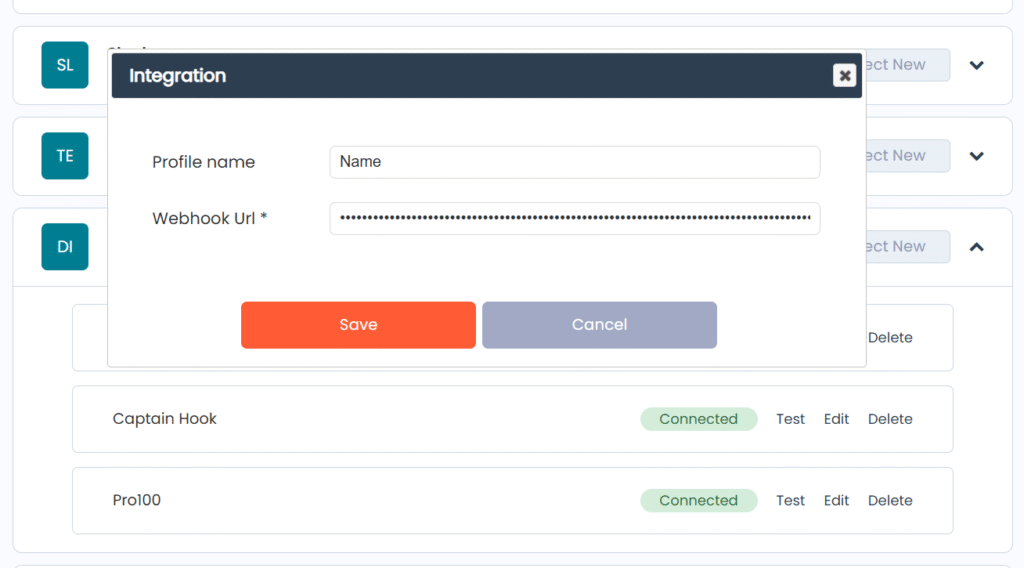
AIWU Integrations page with Discord account setup
Part 2: Using Discord Action in Workflow Builder
Now that your Discord account is connected, you can use it in your automation workflows.
Adding Discord Action to Your Workflow
- Go to AIWU → Workflow Builder
- Create a new workflow or edit an existing one
- In the workflow editor, add a new node
- Go to Actions category
- Select Discord Action
- Choose the function you need:
- Send Message — for simple text messages
- Send Embed — for rich formatted messages
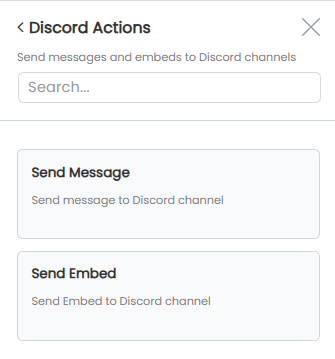
Workflow Builder with Discord Actions node being added
Part 3: Send Message Function
The Send Message function allows you to send simple text messages to your Discord channel.
Configuration Options
| Field | Description | Limits |
|---|---|---|
| Account | Select your connected Discord account | Required |
| Message | The text content of your message | Max 2000 characters |
| Username | Custom bot username for this message | — |
| Avatar URL | Custom avatar image URL for the bot | Must be a valid image URL |
How to Configure Send Message
- Select Send Message as the function
- Choose your Discord account from the Account dropdown
- Enter your message text in the Message field
- You can use dynamic variables from previous workflow nodes
- Example:
New order received: {{order_id}} from {{customer_name}}
- (Optional) Set a custom Username for this message
- (Optional) Add a custom Avatar URL to change the bot’s profile picture
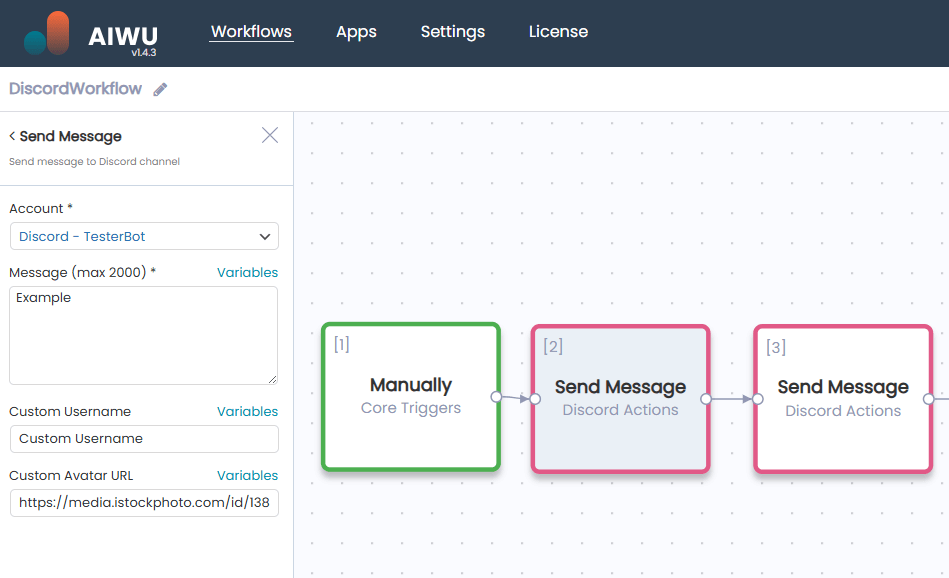
Send Message configuration panel with example values
Example Use Cases
- New WooCommerce Order Alert: Trigger on new order → Send message: “🛒 New order #{{order_id}} — {{order_total}}”
- New Post Published: Trigger on post publish → Send message: “📝 New article published: {{post_title}}”
- Form Submission Notification: Trigger on form submit → Send message: “📩 New contact from {{name}}: {{email}}”
Part 4: Send Embed Function
The Send Embed function creates rich, formatted messages with titles, descriptions, colors, images, and more.
Configuration Options
| Field | Description | Limits |
|---|---|---|
| Account | Select your connected Discord account | Required |
| Title | The embed title (displayed in bold at the top) | Max 256 characters |
| Description | Main content of the embed | Max 4096 characters |
| Embed URL | Clickable link for the title | Valid URL |
| Color (HEX) | Left border color of the embed | HEX format (e.g., #FF5733) |
| Thumbnail URL (optional) | Small image in the top-right corner | Valid image URL |
| Image URL (optional) | Large image below the description | Valid image URL |
| Footer Text (optional) | Small text at the bottom of the embed | Max 2048 characters |
How to Configure Send Embed
- Select Send Embed as the function
- Choose your Discord account from the Account dropdown
- Fill in the embed fields:
- Title: Enter a headline for your embed
- Description: Add the main message content
- Embed URL: Add a link that opens when users click the title
- Color: Set the accent color using HEX code (e.g.,
#5865F2for Discord blue)
- (Optional) Add visual elements:
- Thumbnail URL: Adds a small image in the top-right corner
- Image URL: Adds a large image below the description
- (Optional) Add Footer Text for additional context
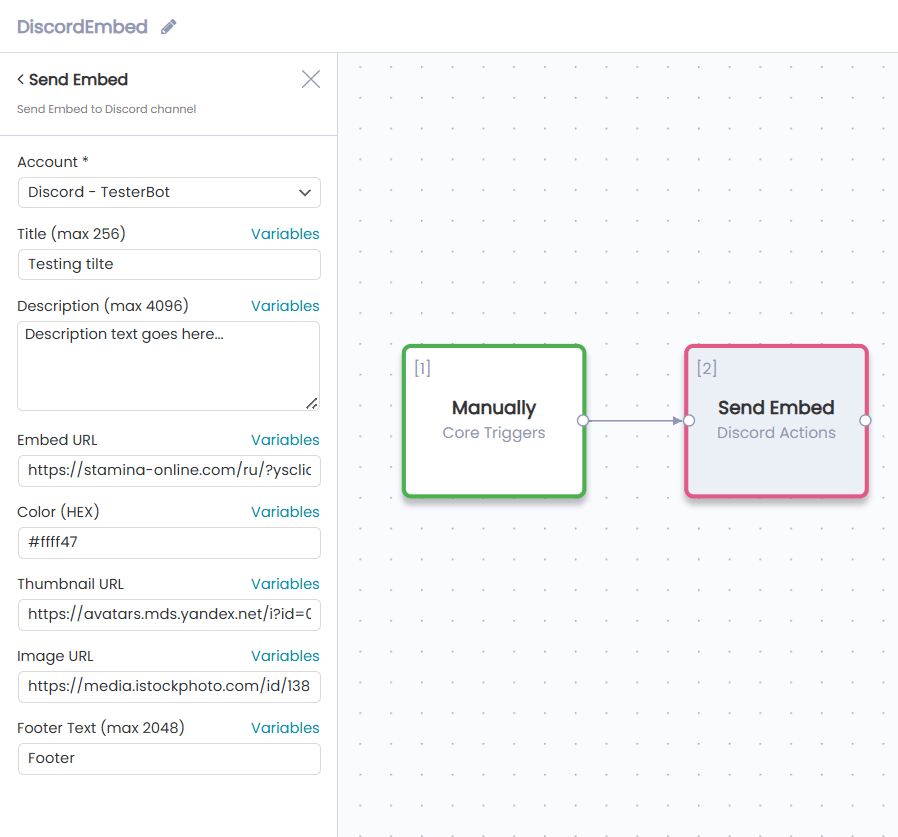
Send Embed configuration panel with all fields filled
Example Use Cases
- Product Launch Announcement: Title: “🚀 New Product Available!” / Description with details / Image of the product / Link to product page
- Weekly Report Summary: Title: “📊 Weekly Stats” / Description with metrics / Brand color / Company logo as thumbnail
- Event Reminder: Title: “📅 Upcoming Webinar” / Description with date/time / Registration link / Event banner image
Best Practices
- Keep messages concise: Discord users prefer quick, scannable content
- Use emojis: They help messages stand out and convey tone
- Set brand colors: Use your brand’s HEX color for embed consistency
- Test your webhooks: Always test with a sample message before going live
- Use dynamic variables: Leverage Workflow Builder variables to personalize messages
- Don’t spam: Be mindful of message frequency to avoid annoying your audience
Troubleshooting
| Issue | Solution |
|---|---|
| Messages not sending | Verify webhook URL is correct and not deleted in Discord |
| Embed not displaying correctly | Check that all URLs are valid and accessible |
| Color not showing | Ensure HEX code includes # (e.g., #FF5733, not FF5733) |
| Images not appearing | Verify image URLs are direct links to images (ending in .jpg, .png, etc.) |
Summary
Discord Integration in AIWU Workflow Builder offers two powerful functions for automated messaging:
- Send Message: Simple text messages (up to 2000 characters) with optional custom username and avatar
- Send Embed: Rich formatted messages with titles, descriptions, colors, images, and footer text
Combined with Workflow Builder triggers, you can create powerful automations that keep your team informed and your community engaged.