
How to Create and Manage Datasets in AIWU AI Training
Datasets are the foundation of all AI training in AIWU. Whether you’re building a smart chatbot, training a custom fine-tuned model, or creating an embedding-powered knowledge base — it all starts with a dataset.
This guide covers everything you need to know: how to navigate the Datasets tab, create datasets from all available sources, choose the right format, and manage your training data.
Path: WordPress Admin → AI Copilot → Training → Datasets

Quick Decision Guide: Which Source and Type Should I Use?
Before diving into the interface, use this table to find the right approach for your goal:
| Your Goal | Source | Dataset Type |
|---|---|---|
| Quickly test a chatbot with a few Q&A pairs | Text Input | Prompt → Completion |
| Import existing FAQ from a spreadsheet | Upload File (CSV) | Prompt → Completion |
| Import structured Q&A from an API export | Upload File (JSON) | Prompt → Completion |
| Add internal docs or brand guidelines for RAG search | Upload File (TXT/PDF/DOCX) | Raw Text |
| Build a knowledge base from your blog posts | Site Content | Raw Text |
| Auto-generate Q&A pairs from product pages | Site Content | Prompt → Completion |
| Paste a short text block for embedding | Text Input | Raw Text |
Key rule:
- Raw Text → used for Embeddings (semantic search, RAG)
- Prompt → Completion → used for Fine-tuning (custom AI models)
Datasets Table Overview
The main Datasets screen shows all your datasets in a table with the following columns:
| Column | Description |
|---|---|
| ☑ | Checkbox for bulk selection |
| ID | Unique dataset identifier |
| Name | Dataset name — click to open and edit |
| Source | How the data was created: Text Input, Upload File, or Site Content |
| Type | Format: Raw Text or Prompt → Completion |
| Tokens | Total token count in the dataset |
| Status | Current processing status (see below) |
| Used In | Which Embeddings or Fine-tuned Models reference this dataset |
Toolbar actions:
- Create New — opens the dataset creation form
- Delete — removes selected datasets and all their data records
Dataset Statuses
| Status | Meaning |
|---|---|
| New | Just created, not yet processed |
| Waiting | Queued for processing |
| Processing | Currently being generated (Site Content source) |
| Ready | Complete and available for use in Embeddings or Fine-tuning |
| In Use | Already linked to an Embedding or Fine-tuned Model |
| Error | Processing failed — check content and retry |
| Pause | Processing paused by user |
| Canceled | Processing was canceled |
Dataset Lifecycle

A dataset moves through statuses automatically:
New → Waiting → Processing → Ready → In Use
If processing fails, the status changes to Error. Datasets reach In Use automatically when linked to an Embedding or Fine-tuned Model. Deleting a dataset also removes all associated data records and generation tasks.
Creating a New Dataset
Click Create New in the toolbar to open the creation form.
URL: admin.php?page=waic-workspace&tab=training-ds
The first choice you make is the Source — this determines where the training data comes from and what options appear next.
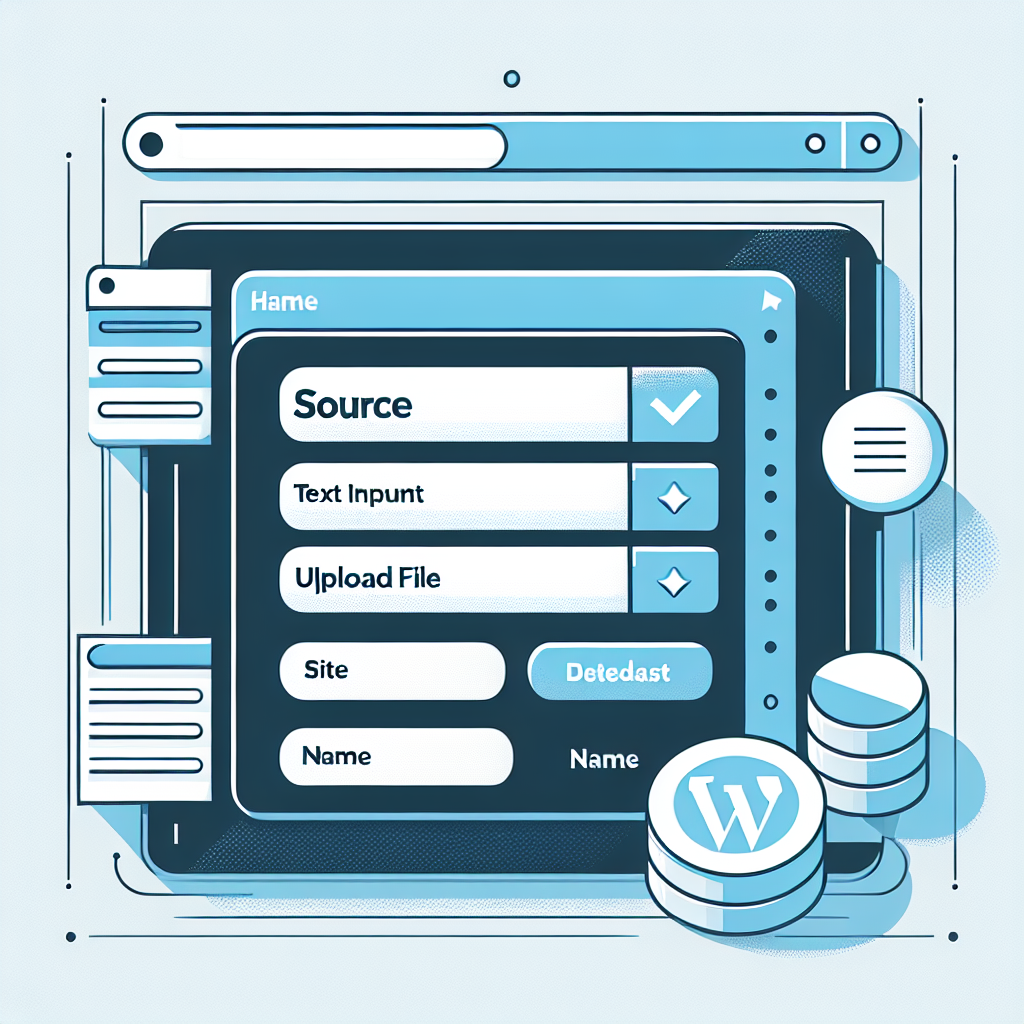
| Source | Description |
|---|---|
| Text Input | Manually enter text or Q&A pairs in the admin |
| Upload File | Upload a .txt, .md, .pdf, .docx, .csv, or .json file |
| Site Content | Auto-extract data from WordPress posts, pages, or WooCommerce products |
Source 1: Text Input
Best for quick tests, small datasets, or when you want full control over every entry.
After selecting Text Input, choose the Dataset Type:
Raw Text Mode
A single textarea where you paste or type unstructured text. This content is used as-is for embedding generation.
Example — store knowledge base for RAG:
Our company offers free shipping on all orders over $50 within the continental United States.
International shipping is available to 45+ countries with delivery times ranging from 7-21 business days.

Returns are accepted within 30 days of purchase. Items must be unused and in original packaging.
Refunds are processed within 5-7 business days after we receive the returned item.

Our customer support team is available Monday through Friday, 9 AM to 6 PM EST.
You can reach us via email at [email protected] or through the live chat on our website.
When to use: Building a knowledge base for RAG-powered chatbots, adding brand guidelines, feeding internal documentation into embeddings.
Prompt → Completion Mode
A table with two columns: Prompt and Completion. Each row is one training pair.
Example — customer support bot:
| Prompt | Completion |
|---|---|
| What is your return policy? | We accept returns within 30 days of purchase. Items must be unused and in original packaging. Contact [email protected] to start a return. |
| Do you offer international shipping? | Yes! We ship to 45+ countries. International delivery takes 7-21 business days depending on destination. |
| How can I track my order? | Visit our Order Tracking page and enter your order number. You’ll also receive tracking updates via email. |
| Can I cancel my order? | Orders can be canceled within 2 hours of placement. After that, please wait for delivery and use our return process. |
| What payment methods do you accept? | We accept Visa, Mastercard, American Express, PayPal, and Apple Pay. |
Adding multiple pairs at once: Click the Add button to open a dialog. Enter each pair on a new line, separating Prompt and Completion with a colon (:):
What are your business hours?: We're open Monday-Friday, 9 AM to 6 PM EST.
Do you have a loyalty program?: Yes! Sign up for free and earn 1 point per dollar spent.
How do I reset my password?: Click "Forgot Password" on the login page and follow the email instructions.
When to use: Training a fine-tuned model to respond in a specific style, building FAQ bots, teaching AI your brand voice.
Source 2: Upload File
Best when you already have training data prepared outside WordPress.
Click Upload to select a file. After uploading, the system detects the file type and shows appropriate settings.
Supported File Formats
| Format | Default Dataset Type | Best For |
|---|---|---|
.txt |
Raw Text | Plain text documents, notes |
.md |
Raw Text | Markdown documentation |
.pdf |
Raw Text | Manuals, reports, whitepapers |
.docx |
Raw Text | Word documents, policies |
.csv |
Prompt → Completion | Structured Q&A from spreadsheets |
.json |
Prompt → Completion | API exports, structured data |
The default type can be overridden manually if needed.
Uploading a CSV File
After uploading a CSV, the following settings appear:
Separator — choose the delimiter used in your file:
- Comma
, - Semicolon
; - Colon
: - Tab
t
Mapping “Prompt” — select the CSV column containing the input/question.
Mapping “Completion” — select the CSV column containing the expected output/answer.
A live Preview section shows how the data will be parsed. Use the Refresh button (↻) to re-parse after changing settings.
Example CSV file:
question,answer
What is your return policy?,We accept returns within 30 days of purchase.
Do you ship internationally?,Yes we ship to over 45 countries worldwide.
How long does delivery take?,Standard delivery takes 3-5 business days domestically.
What if my item arrives damaged?,Contact us within 48 hours with photos and we will send a replacement.
Can I change my shipping address?,Yes if the order has not been shipped yet. Contact support immediately.
After uploading this file, set Separator to ,, map “Prompt” to question, and “Completion” to answer.
Uploading a JSON File
JSON files are parsed automatically — no separator or column mapping needed.
Example JSON file:
[
  {
    "prompt": "What sizes do you carry?",
    "completion": "We carry sizes XS through 3XL across all product lines."
  },
  {
    "prompt": "Are your products eco-friendly?",
    "completion": "Yes, all our packaging is recyclable and we use sustainable materials wherever possible."
  },
  {
    "prompt": "Do you offer gift wrapping?",
    "completion": "Yes! Select the gift wrap option at checkout for $3.99."
  }
]
Use consistent key names — "prompt" and "completion" are recommended.
Uploading TXT, MD, PDF, or DOCX Files
These formats default to Raw Text and display a text preview instead of a table. No separator or mapping configuration is needed.
Tips:
- Remove unnecessary formatting, HTML tags, or special characters before upload
- Use UTF-8 encoding, especially with non-English text
- Large files increase token count, which affects training time and API cost
Source 3: Site Content
Best when your WordPress site already contains the content you want to train on — blog posts, pages, or WooCommerce products.
The plugin extracts content, optionally processes it with OpenAI, and creates a ready-to-use dataset automatically.
Step 1: Choose Dataset Type
| Type | What Happens |
|---|---|
| Raw Text | Extracts and cleans content as plain text |
| Prompt → Completion | AI generates Q&A pairs from the content |
Step 2: Select Content
Choose the content type from the dropdown:
- WordPress Post — blog posts
- WordPress Page — static pages
- WooCommerce Product — product listings (visible only if WooCommerce is active)
Click Add to open a picker dialog where you can search and filter items:
- Posts: filter by Title, Categories, Tags
- Products: filter by Product Name, Categories, Tags
- Pages: filter by Title
Selected items appear in a table with columns: ☑, Title, Type, and Additional prompt (an optional per-item instruction for the AI).
Step 3: Choose Fields to Include
Post Fields:
Post Title, Post Content (Body), Post Excerpt, Post Tags, Post Categories, Author Name, Publish Date.
Product Fields:
Product Name, Product Description, Short Description, Product Tags, Product Categories, SKU, Attributes, Price, Stock Status.
Select multiple fields to give the AI richer context.
Step 4: Configure Generation Settings
OpenAI Model — select which model processes your content. Affects output quality and cost.
Additional prompt (global) — an optional instruction applied to all items. Enable the checkbox, then enter your instruction.
Example global prompts:
- “Summarize each product for a technical audience. Focus on specifications and use cases.”
- “Generate FAQ-style questions a customer might ask before purchasing.”
- “Write in a friendly, conversational tone. Avoid jargon.”
Raw Text mode settings:
- Max Length per Item (default: 300) — token limit per content item
Prompt → Completion mode settings:
- QA per Item (default: 3) — how many Q&A pairs to generate per item
- Max Length Prompt (default: 100) — max tokens for the generated question
- Max Length Completion (default: 300) — max tokens for the generated answer
How Generation Works
After clicking Create dataset, the plugin:
- Collects all selected posts/pages/products
- Assembles a prompt for each item using selected fields + instructions
- Queues items for AI processing (status → Processing)
- Generates dataset entries — either clean text or Q&A pairs
- Marks the dataset as Ready when complete
⚠️ Important: Site Content generation uses the OpenAI API, which incurs costs based on token usage. Monitor your API usage in the OpenAI dashboard.
Example: Building a Product FAQ Bot
Scenario: You have 30 WooCommerce products and want a chatbot that answers customer questions about them.
Configuration:
- Source: Site Content
- Dataset Type: Prompt → Completion
- Content: Select your 30 products
- Product Fields: Product Name, Description, Price, Categories, Stock Status
- QA per Item: 5
- Additional prompt: “Generate realistic customer questions and helpful answers. Include pricing and availability details when relevant.”
Result: Up to 150 Q&A pairs (30 products × 5 pairs) ready for fine-tuning.
Example: Building a Knowledge Base for RAG Search
Scenario: You have 50 blog posts about hiking gear and want a smart search that understands natural language queries.
Configuration:
- Source: Site Content
- Dataset Type: Raw Text
- Content: Select your 50 posts
- Post Fields: Post Title, Post Content, Post Categories, Post Tags
- Max Length per Item: 500
- Additional prompt: “Extract the key facts, product recommendations, and practical advice. Remove filler content.”
Result: Clean, condensed text from each post, ready for embedding generation.
Editing a Dataset
Click a dataset Name in the table to open the Edit view.
What you can do:
- Change the Dataset Type (Raw Text ↔ Prompt → Completion)
- Edit text content or Q&A pairs
- Add new Prompt → Completion pairs via the Add button
- Delete selected pairs via the Delete button
- Save changes with the Save dataset button
Note: Only datasets created via Text Input or Upload File are directly editable. Site Content datasets are managed through the generation process — to change them, create a new dataset with updated settings.
What’s Next?
Once your dataset has Ready status, you can use it to:
- Create Embeddings (Raw Text datasets) — generate vector embeddings for semantic search and RAG-powered chatbots. See: How to Create and Use Embeddings
- Fine-tune a Model (Prompt → Completion datasets) — train a custom AI model that responds in your brand voice. See: Fine-Tuning: How to Train Your Own Custom AI Model
For best practices on dataset preparation, see: Best Practices for Datasets