
How to Set Up Telegram Integration in AIWU
The Telegram integration in AIWU allows you to automate sending messages, photos, and documents to Telegram chats, groups, and channels directly from your workflows. This integration solves the task of automating notifications and communications, saving time and ensuring timely delivery of information to your audience.
In this article, you will learn how to obtain the required connection data (Bot Token and Chat ID) and configure the integration in AIWU.
What You Need for Setup
To set up the Telegram integration, you will need:
- Bot Token — your Telegram bot token (obtained from @BotFather)
- Chat ID — the identifier of the chat, group, or channel where messages will be sent
Both parameters are required for the integration to work.
Step 1: Create a Bot and Get Bot Token
- Open Telegram and find @BotFather (the official bot for creating bots in Telegram).
- Start a conversation with BotFather by clicking the Start button.
- Send the command
/newbotto create a new bot. - BotFather will ask you to choose a name for your bot. Enter a display name (e.g., “My AIWU Bot”).
- Then choose a username for your bot. The username must end with “bot” (e.g., “my_aiwu_bot”). It must be unique and contain only lowercase letters, numbers, and underscores.
- If the username is available, BotFather will send you a message containing your Bot Token. It will look like this: 123456789:ABCdefGHIjklMNOpqrsTUVwxyz
- Important: Copy and save this token securely. You will need it in Step 3.
Step 2: Get Chat ID
Chat ID is the identifier of the destination for your messages. The method of obtaining it depends on where you want to send messages: to a personal chat, group, or channel.
Option A: Get Chat ID for Personal Chat
- Open Telegram and find @userinfobot.
- Start a conversation with @userinfobot by clicking Start.
- The bot will immediately send you a message with your Chat ID. It will be a numeric value (e.g.,
123456789). - Copy this number — this is your Chat ID for personal messages.
Option B: Get Chat ID for Group
Method 1: Via Telegram Web Version
- Open the Telegram web version in your browser: https://web.telegram.org
- Log in to your account and open the desired group.
- Look at the URL in your browser’s address bar. It will look something like this: https://web.telegram.org/k/#-1001234567890 or https://web.telegram.org/a/#-1001234567890
- The number after the
#symbol (e.g.,-1001234567890) is the group’s Chat ID. Copy this number.
Method 2: Via Telegram API
- Add your bot to the group where you want to send messages:
- Open the group in Telegram
- Go to group settings (tap the group name at the top)
- Select Add Members or Add Participants
- Find your bot by username (the one you created in Step 1)
- Add the bot to the group
- After adding the bot, send any message in the group (this is required to initialize the bot).
- Open your browser and go to: https://api.telegram.org/bot<YOUR_BOT_TOKEN>/getUpdates Replace
<YOUR_BOT_TOKEN>with the token you received from BotFather. - Find the
"chat"object in the JSON response that contains"type": "group"or"type": "supergroup". - The Chat ID will be in the
"id"field. For groups, it’s usually a negative number (e.g.,-1001234567890).
Option C: Get Chat ID for Channel
- Add your bot as an administrator to the channel:
- Open your channel in Telegram
- Go to channel settings (tap the channel name)
- Select Administrators
- Tap Add Administrator
- Find your bot and add it
- Grant the bot permission to Send Messages (minimum)
- After adding the bot, post any message in the channel (this initializes the bot).
- Open your browser and go to: https://api.telegram.org/bot<YOUR_BOT_TOKEN>/getUpdates Replace
<YOUR_BOT_TOKEN>with your Bot Token. - In the JSON response, find the
"chat"object with"type": "channel". - The Chat ID will be in the
"id"field. For channels, it’s usually a negative number starting with-100(e.g.,-1001234567890).
Step 3: Configure Telegram Integration in AIWU
- Log in to your WordPress admin panel.
- Go to AIWU → Workflows → Integrations.
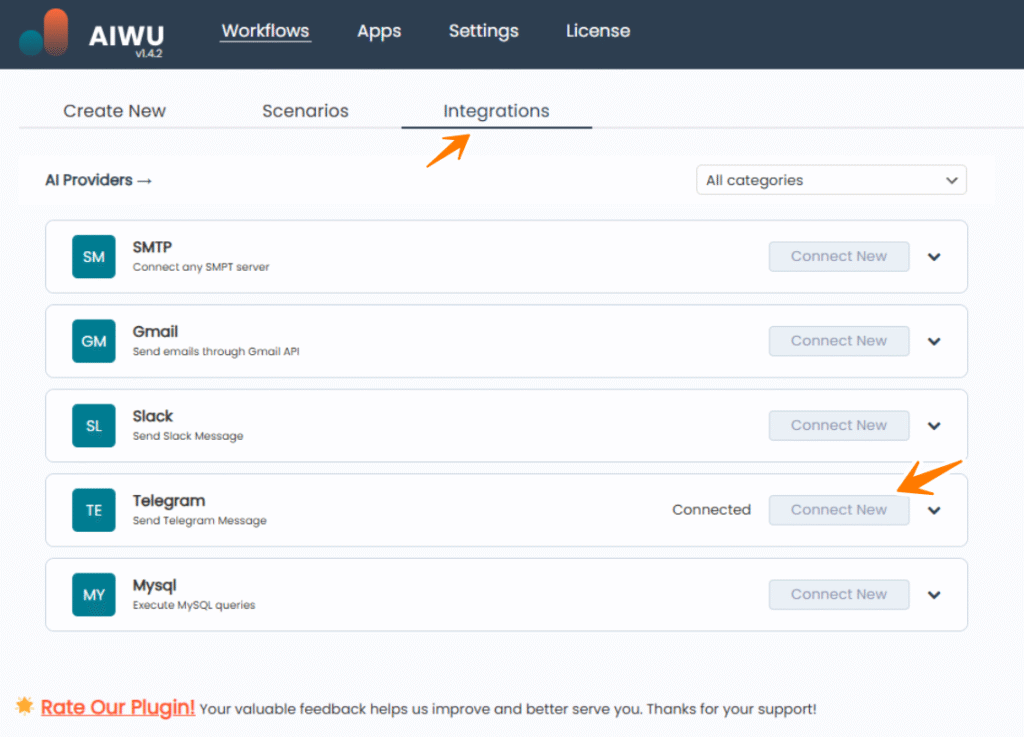
- Find Telegram in the list of available integrations and click Connect New.
- In the integration modal, fill in the following fields:
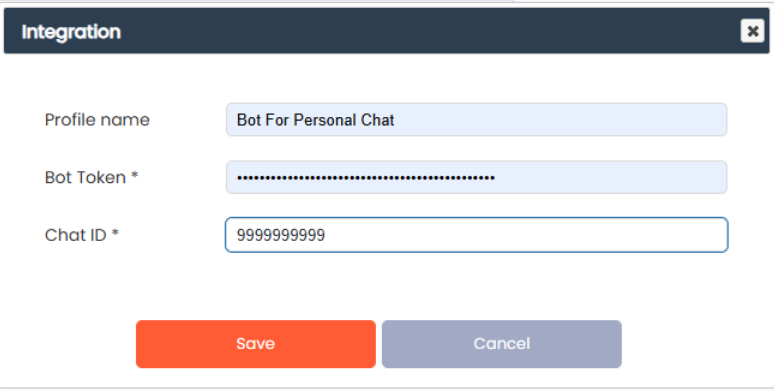
- Profile name: Enter a descriptive name to identify this configuration (e.g., “Bot For Personal Chat”, “Bot For Channel”, “Bot For Group”).
- Bot Token *: Paste the Bot Token you received from BotFather in Step 1.
- Chat ID *: Enter the Chat ID you obtained in Step 2:
- For personal chats: use the numeric ID from @userinfobot
- For groups: use the numeric ID (usually negative) from the Telegram web version URL or from the API response
- For channels: use the numeric ID (usually negative, starting with
-100)
- Click Save to save the configuration.
- The integration will automatically test the connection. If successful, you will see the Connected status.
Step 4: View Your Configured Integrations
After saving, you can see all your configured Telegram integrations in the list. Each integration will show:
- Profile name (e.g., “Bot For Channel”, “Bot For Personal Chat”, “Bot For Group”)
- Connection status (green “Connected” badge if successful)
- Action buttons: Test, Edit, and Delete
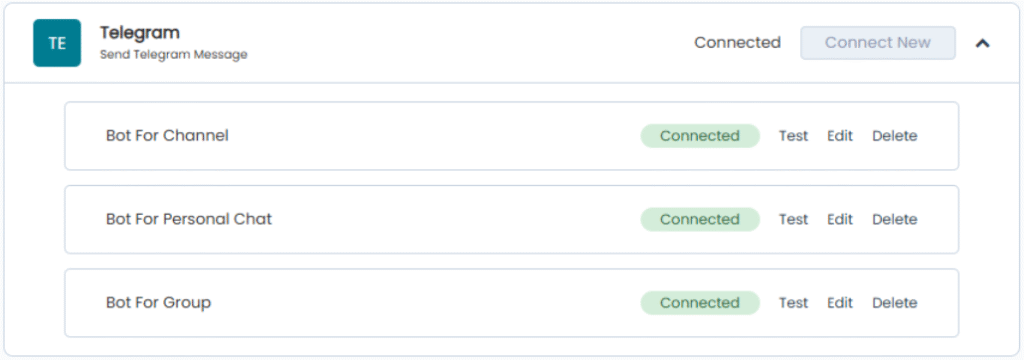
You can create multiple Telegram integrations with different Chat IDs for different purposes (personal chat, group, channel).
Step 5: Test Your Integration
- After saving, you can test the connection by clicking the Test button next to your integration profile.
- If the test is successful, the word Connected will be highlighted with a green badge.
- If there’s an error, check:
- Bot Token is correct and hasn’t been revoked
- Chat ID is correct
- For groups/channels: the bot has been added and has the necessary permissions
- For channels: the bot has administrator rights with “Send Messages” permission
Troubleshooting
Error: “Bot Token is required”
Make sure you’ve entered the Bot Token correctly in the integration settings.
Error: “Chat ID is required”
Verify that you’ve entered the correct Chat ID for your target chat, group, or channel.
Error: “Bad Request” or “Unauthorized”
Check that your Bot Token is valid and hasn’t been revoked. Ensure the bot hasn’t been deleted or blocked.
Error: “Forbidden: bot is not a member of the group”
For groups: make sure you’ve added the bot to the group. For channels: ensure the bot is added as an administrator with “Send Messages” permission.
Error: “Chat not found”
Verify the Chat ID is correct. For groups/channels: ensure the bot is still a member and has the necessary permissions.
Messages not being sent
Check that the bot hasn’t been blocked by the user (for personal chats). Verify the bot has permission to post messages in groups/channels. Check your workflow logs for detailed error messages.
Best Practices
- Security: Bot tokens are encrypted in the database, but always keep them secure and never publish them publicly.
- Multiple Configurations: Create separate integration profiles for different purposes (personal chat, group, channel) for better organization.
- Testing: Always test your workflows with a test bot and test chat before deploying to production.
Conclusion
Setting up the Telegram integration in AIWU is a simple process that opens up opportunities for communication automation. By following this guide, you can configure multiple bot configurations for different use cases and start automating message sending to Telegram through your workflows.