
Telegram: Send, Edit & Delete Message
Introduction
This article explains how to use the Send Message, Edit Message, and Delete Message Telegram actions in AIWU. These actions allow you to automate sending, editing, and deleting messages in Telegram channels and groups.
Why use these actions?
- Automated customer notifications
- Time-limited promotions and promo codes
- Dynamic message updates
- Auto-deletion of outdated content
Send Message
The Send Message action sends a new message to Telegram.
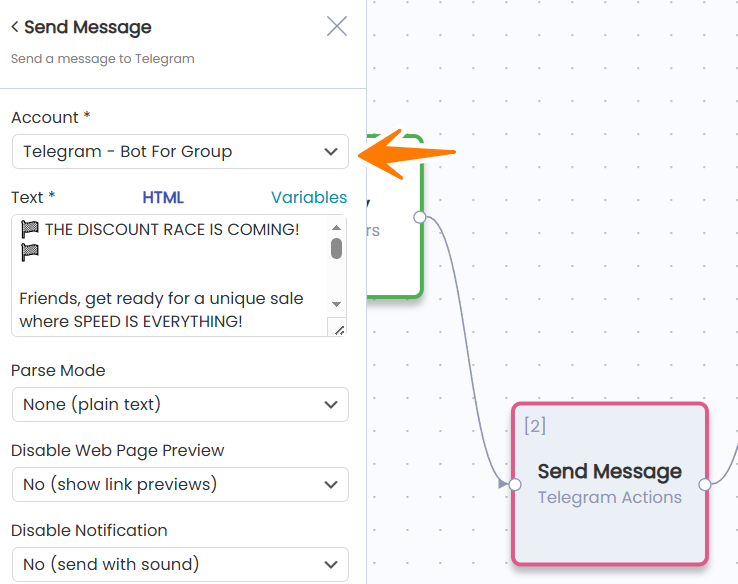
Settings:
| Field | Description |
|---|---|
| Account | Select your connected Telegram bot |
| Text | Message text (supports variables and HTML formatting) |
| Parse Mode | Text format: None (plain text), HTML, or Markdown |
| Disable Web Page Preview | Disable link previews in the message |
| Disable Notification | Send message silently (no sound) |
Output Variables:
After Send Message executes, you get these variables for use in subsequent nodes:
- Message Sent Successfully — delivery status (true/false)
- Message ID — unique message identifier (required for Edit/Delete)
- Chat ID — chat identifier
- Chat Type — type of chat (private/group/supergroup/channel)
- Message Date — send time (Unix timestamp)
- Message Text — the sent message text
Edit Message
The Edit Message action modifies the text of an already sent message.
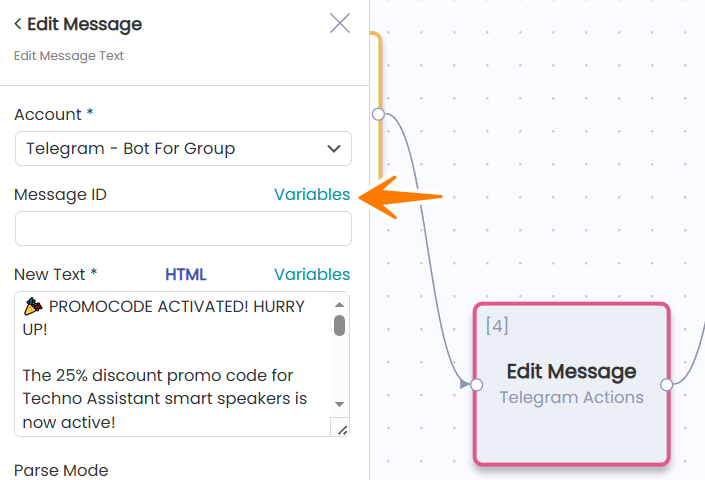
Settings:
| Field | Description |
|---|---|
| Account | The same Telegram bot that sent the original message |
| Message ID | ID of the message to edit |
| New Text | New message text |
| Parse Mode | Text format |
How to get Message ID?
Click Variables next to the Message ID field. A popup will appear with available variables from previous nodes:
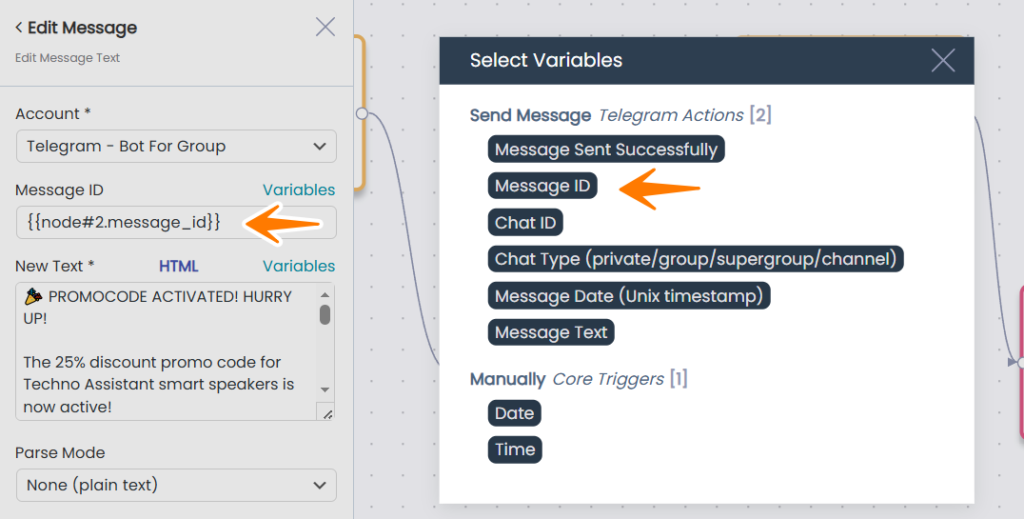
Select Message ID from the Send Message node. This inserts a variable in the format: {{node#2.message_id}}
Delete Message
The Delete Message action removes a message from the chat.
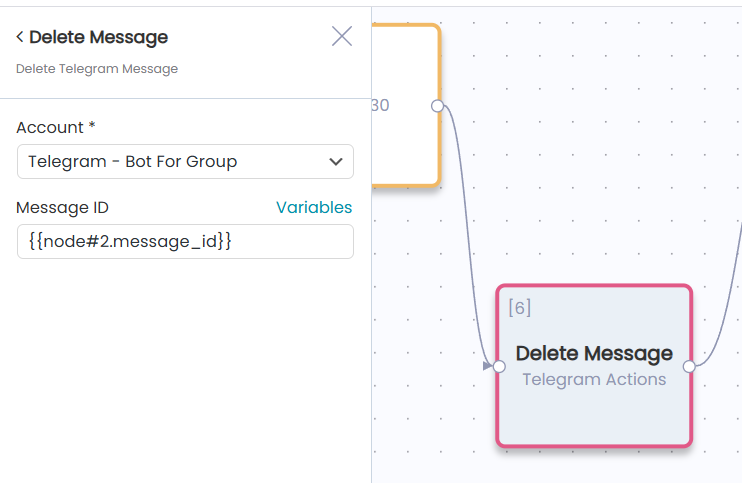
Settings:
| Field | Description |
|---|---|
| Account | Telegram bot |
| Message ID | ID of the message to delete |
Use the same approach as Edit Message — click Variables and select the Message ID from the Send Message node.
Example Workflow
Here’s a workflow that demonstrates all three actions working together:
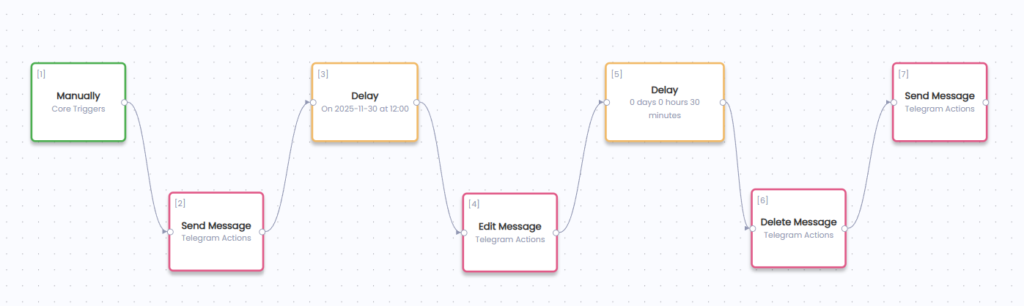
Structure:
[1] Manually (trigger)
    ↓
[2] Send Message — initial message
    ↓
[3] Delay — wait until specific time
    ↓
[4] Edit Message — update message content
    ↓
[5] Delay — wait 30 minutes
    ↓
[6] Delete Message — remove the message
    ↓
[7] Send Message — new message
Key Points:
- Send Message [2] sends the initial message and outputs
message_id - Edit Message [4] uses
{{node#2.message_id}}to reference that message - Delete Message [6] uses the same
{{node#2.message_id}}to delete it - Send Message [7] creates a completely new message (new message_id)
Important Notes
- Message ID is only available within a single workflow run
- Use the same bot for Edit and Delete that originally sent the message
- Telegram allows editing messages only within 48 hours
- Bots can only delete their own messages (or any message in a group if the bot is an admin)
- The Delay node is useful for scheduling edits or deletions at specific times