
Telegram: Sending Files and Photos in Workflows
Introduction
This article explains how to send documents and photos via Telegram using the AIWU Workflow automation. You’ll learn about the available sending modes, field configurations, and important details about Telegram’s file handling system. Whether you need to send files by URL, forward existing files using their Telegram File ID, or simply share photos with your audience — this guide covers all the essentials.
Available Actions
AIWU provides two Telegram actions for sending files:
- Send Document — for sending documents (PDF, DOCX, ZIP, etc.)
- Send Photo — for sending images
Both actions work identically and share the same configuration options described below.
Sending Modes
Mode: URL
Use this mode when you want to send a file from an external URL (e.g., Google Drive, Dropbox, or your server).
Fields:
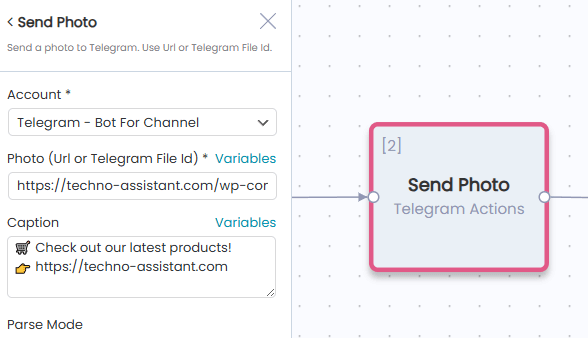
- Account (required) — Select the Telegram bot account that will send the file.
- Mode (required) — Select “Url” to send a file from an external link.
- Document Url / Photo Url (required) — The direct URL to the file you want to send. You can use variables from previous nodes.
- Document Name (optional) — The filename that will be displayed in Telegram. Important: Include the file extension (e.g.,
report.pdf,document.docx) so Telegram knows how to open the file. If omitted, the file may not open correctly. - Caption (optional) — Text caption that appears below the document or photo.
Mode: Telegram File ID
Use this mode when you want to forward a file that was previously sent or received by your Telegram bot. This is useful for:
- Forwarding files between chats
- Re-sending files without re-uploading
- Chaining multiple “Send Document” or “Send Photo” actions
Fields:
- Account (required) — Select the Telegram bot account that will send the file.
- Mode (required) — Select “Telegram File Id” to send using an existing file ID.
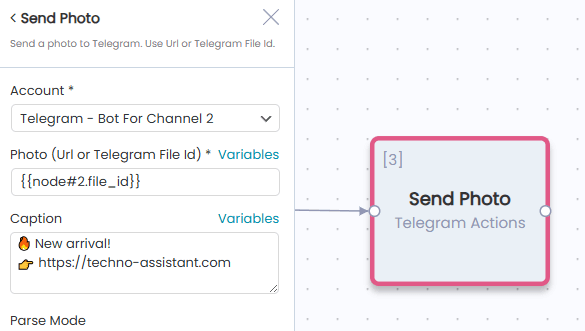
- Document File Id / Photo File Id (required) — The Telegram file ID. Use variables like
{{node#2.file_id}}to reference a file from a previous node. - Caption (optional) — Text caption that appears below the document or photo
Using Variables
All text fields support variables from previous workflow nodes. Click the Variables button next to any field to insert dynamic data. Example: To forward a document received in a previous node, use {{node#2.file_id}}. This allows you to build powerful automation chains where files flow through multiple steps.
Important: File ID Restrictions
Telegram File IDs are bot-specific. A file ID obtained by one bot cannot be used by a different bot. The file ID is only valid for the same bot that originally sent or received the file.
What this means:
- If Bot A receives a document and you try to send it using Bot B with the same file ID — it will fail.
- Always use the same bot account when working with file IDs in your workflow chain.
- If you need to send a file through a different bot, use the URL mode instead.
Tips and Best Practices
- Always include file extensions in the Document Name field (e.g.,
invoice.pdf,report.docx). Without an extension, Telegram may not recognize the file type and users won’t be able to open it properly. - Use URL mode for files hosted externally or when you need flexibility across different bots.
- Use Telegram File ID mode for better performance when forwarding files within the same bot — it’s faster since Telegram doesn’t need to re-download the file.
- Chain multiple actions — you can send the same file to multiple chats or channels by connecting several “Send Document” or “Send Photo” nodes in sequence, using the file ID from the first send action.